Medray Expense Staff Introduction

Introducing Medray Expense

Medray Expense is Medray's new digital platform for creating, submitting, approving, and tracking staff expense reports. It gives staff one clear workspace for expenses, trips, mileage, policy-led submission, and a more visible approval journey.

Digital submissions only Policy-led expense claims Mileage and trip logging
1. Introducing The Platform

One Digital Workspace For Staff Expenses

Medray Expense brings expense claims, travel logging, mileage tracking, and report status into one place. It is being introduced so staff can submit expenses digitally, work against the right policy, and follow a clearer approval process from start to finish.

Staff Introduction

What Changes For Staff

Digital-first submission: Medray Expense becomes the main route for staff expense reporting after deployment.
One place to work: staff should create, save, submit, and review expense reports directly in the platform.
Clearer process: reports move through a structured submission and approval route instead of mixed or manual methods.

Questions Or Uncertainty

Line manager first: if you are unsure which policy, appendix, or submission route applies, speak to your line manager first.
HR second: if the question remains unresolved, contact HR for support.
Use this page as your launch guide: the sections below explain the platform features and the steps staff should follow.
2. Why Medray Expense Matters

Benefits And Core Features For Staff

The platform is not just a new screen. It creates one consistent process for recording expenses correctly, keeping mileage separated, routing reports through line-manager approval, and giving staff and approvers better visibility throughout the claim lifecycle.

Why It Matters
Platform Benefit

Automated Approval Route

Submitted reports move through a clearer approval process with the relevant line manager, improving visibility for both staff and approvers.

Platform Benefit

Live Finance Integration

Approved reports feed into the wider finance process, reducing duplication and improving downstream handling of expense data.

Benefit Digital Submission

Expense claims move through one structured platform instead of mixed email, paper, or offline submission methods.

Feature Status Tracking

Staff can see whether a report is draft, submitted, approved, or rejected without chasing updates manually.

Feature Mileage Logging

Business and personal mileage can be recorded separately so claims are clearer, more complete, and easier to review.

Feature Policy Alignment

Reports are created within the structure of the company expense policy and local appendices where applicable.

What Staff Can Do In The Platform

Create reports for a period, journey, or trip.
Add expense items with the right category, currency, and amount.
Log mileage and travel including separate business and personal distance.
Submit into approval so reports flow directly to your line manager.
Save and return to drafts before submitting.
Track status after submission and follow the report through approval and finance processing.

Before You Begin Using It

Know which Medray expense policy applies to you and whether you also have a local appendix.
Be ready to record every expense, every relevant trip, and all business and personal mileage correctly.
Use the rest of this page as a practical introduction to how the platform works screen by screen.
3. Staff Dashboard

Start With Your Workspace

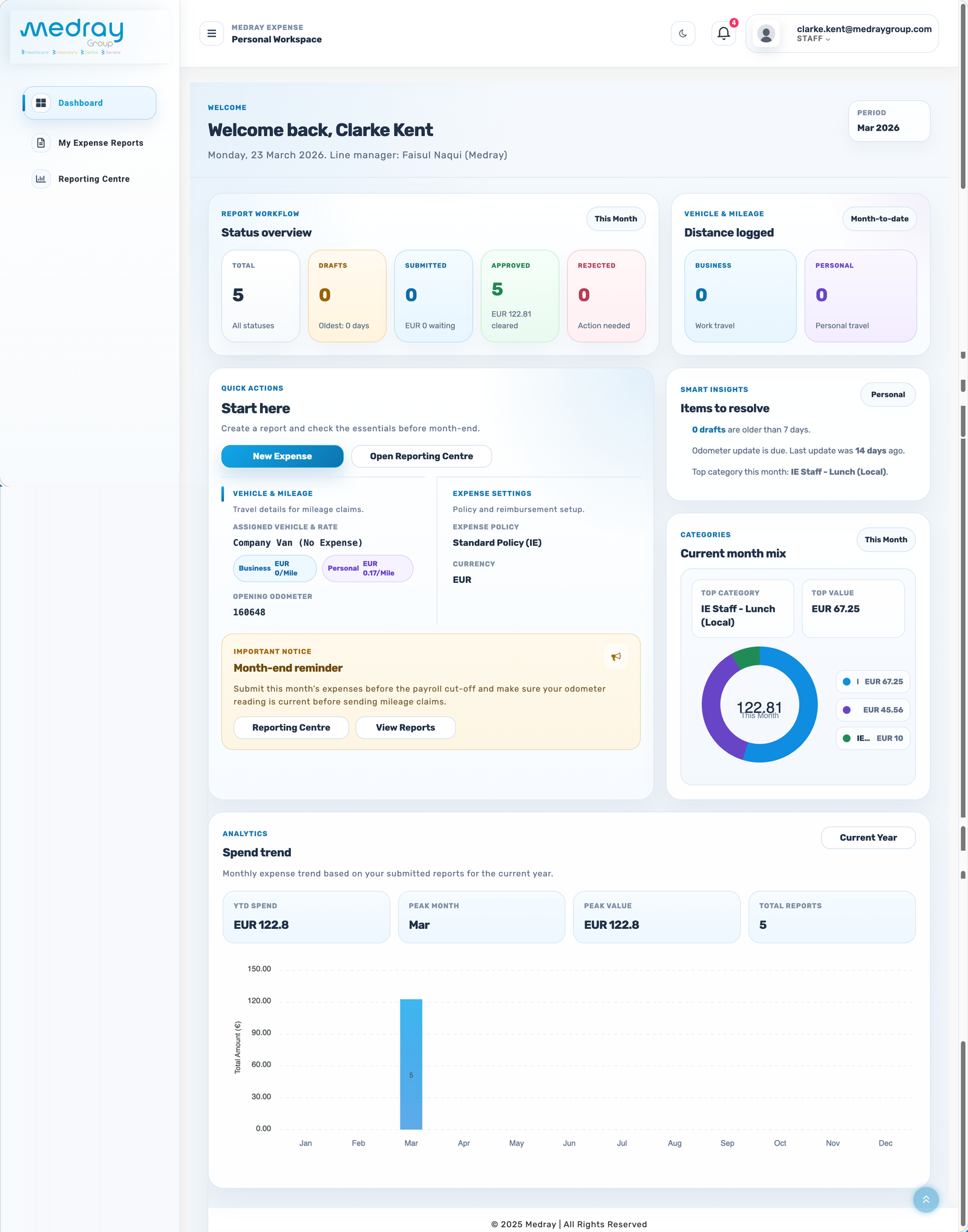
The dashboard is your starting point. It gives you a quick view of report status, mileage, shortcuts, and current-month insights so you can act quickly without hunting through menus.

Daily Start Point
Status Overview Track Reports

See totals for drafts, submitted reports, approved reports, and rejected items.

Quick Actions Move Faster

Jump straight into creating a new report or opening the reporting centre.

Vehicle & Mileage Know Your Setup

Check your assigned vehicle, mileage rates, currency, and opening odometer.

Analytics Review Trends

Use the lower chart area to understand how your spending moves month by month.

Staff dashboard screenshot
4. Create A Report

Start A New Expense Report

A report is the shell that holds the expenses you want to submit. This first step is about creating the report itself, naming it clearly, setting the right dates, and opening the report so it is ready for item entry.

Core Workflow
Expense report listing screen
Create report modal screenshot one
Create report builder screenshot

Steps

1. Open My Expense Reports from the left navigation.
2. Click Add Expense Report.
3. Enter a clear report name that helps you and approvers identify the period or trip.
4. Select the correct start date and end date.
5. Save the report shell so it opens in the full report builder.

Best Practice

Create separate reports for clearly different periods or journeys instead of mixing everything into one long-running report.
Use a simple title pattern such as March Expenses, Client Visit Dublin, or Conference Travel.
5. Build The Report

Add Expense Items And Submit

Once the report shell exists, this is where you build the submission itself by adding expense items, checking totals, saving progress, and sending the report forward for approval.

Draft To Submit
Open report builder screenshot
Expense entry screenshot
Expense entry screenshot with items

What Happens Here

Add Item creates a new line in the report for an expense or mileage entry.
Each item should include the correct date, category, currency, and amount.
As items are added, the total report amount updates on the right side of the builder.
Save & Close keeps the report in progress so you can return later.
Submit Now sends the report into the approval process.

Before You Submit

Make sure the report dates are correct and all line items are complete.
Check your mileage defaults, policy, and any receipt requirements before clicking submit.
If you are not ready, save the report and keep it as a draft instead of submitting incomplete data.
6. My Reports

Track, Search, And Reopen Reports

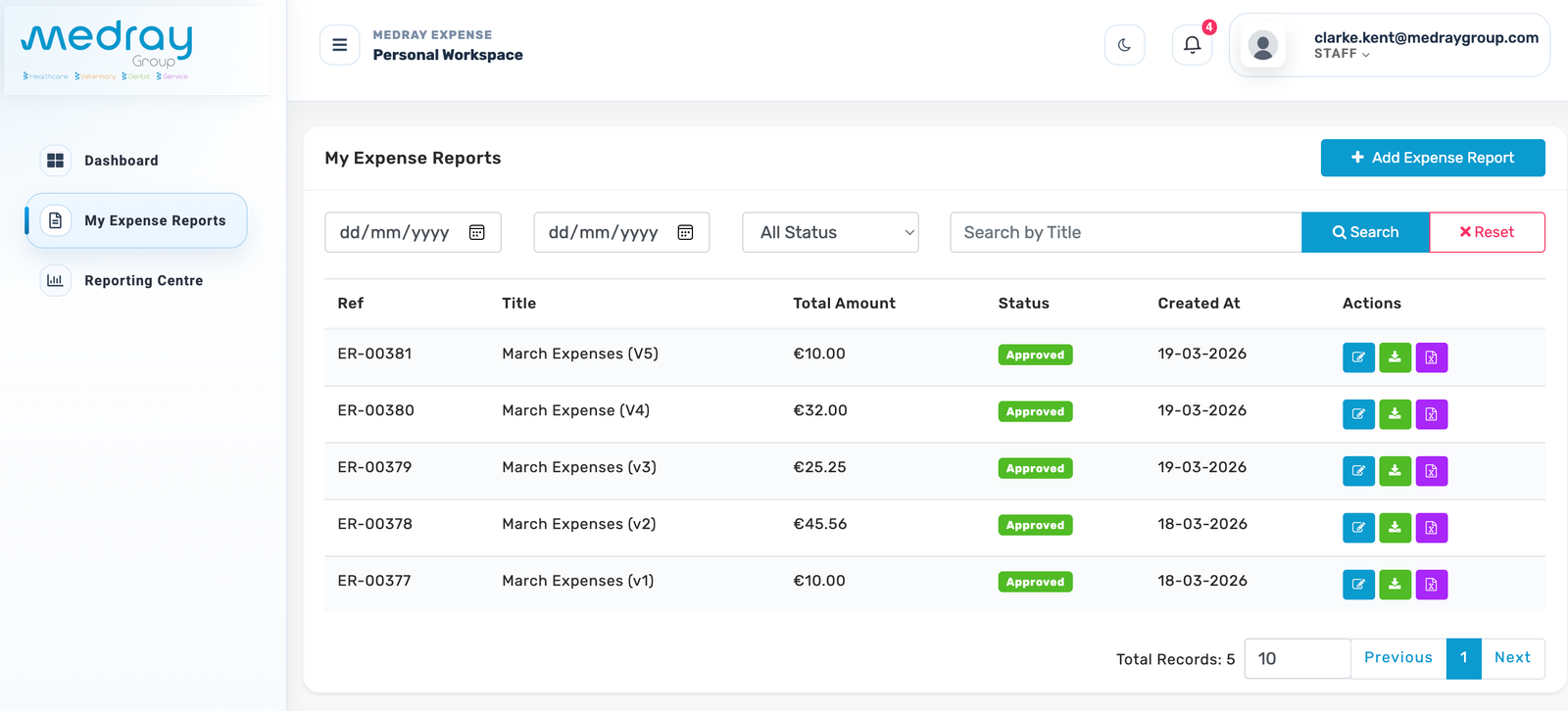
The report list is where staff return to review older submissions, search by title, filter by status, and open reports again if needed.

Ongoing Management
Report list screenshot
7. Mobile Experience

Medray Expense On Mobile

The mobile app brings the Medray Expense experience into a compact format, giving staff access to the platform when they are away from a laptop or desktop.

Mobile Showcase
Medray Expense mobile app shown on the iPhone launch screen
Mobile Screen

Launchpad

Access the app directly from your device home screen.

Medray Expense mobile login screen
Mobile Screen

Sign In

Sign in to the same Medray Expense environment on mobile.

Create a new report in the Medray Expense mobile app
Mobile Screen

New Report

Create a report with title, notes, and date range.

Adding or editing a line item in the Medray Expense mobile app
Mobile Screen

Line Item Entry

Add items, upload receipts, and review totals.

Saving or submitting an expense report from the Medray Expense mobile app
Mobile Screen

Save Or Submit

Save the report or send it forward for approval.

8. Access Options

Available Across Web And Mobile

Staff can access Medray Expense across desktop and mobile entry points depending on where and how they prefer to work.

Three Access Routes
Access Option

Laptop / PC Web Platform

Use the web platform on a laptop or desktop when you want the fullest workspace for creating, reviewing, and tracking expense reports.

Access Option

Apple iOS App

Use the iPhone app when you need mobile access to the platform and want to work on reports while away from your desk.

Access Option

Android Play Store App

Use the Android app for the same mobile workflow, giving staff a consistent route to the platform through Google Play devices.

9. Staff Expectations

What Staff Are Expected To Do

Medray Expense makes submission easier, but staff are still responsible for recording expenses correctly, following the policy that applies to them, and using the right support route when they are unsure.

Policy And Contact

Expected From Every Staff Member

1. All expenses must be logged in the platform.
2. All car travel must be logged, including the separation of business and personal mileage.
3. All trips must be logged, including support callouts, business trips, and related travel activity.
4. Reports should be submitted using the expense policy and appendix that apply to you.
5. After deployment, only digital submissions will be accepted.

Contact Workflow

Step 1: speak to your line manager if you are unsure which policy, appendix, or submission route applies.
Step 2: contact HR if the question remains unresolved or needs wider policy clarification.
Use the policy documents below as your reference point when preparing claims.

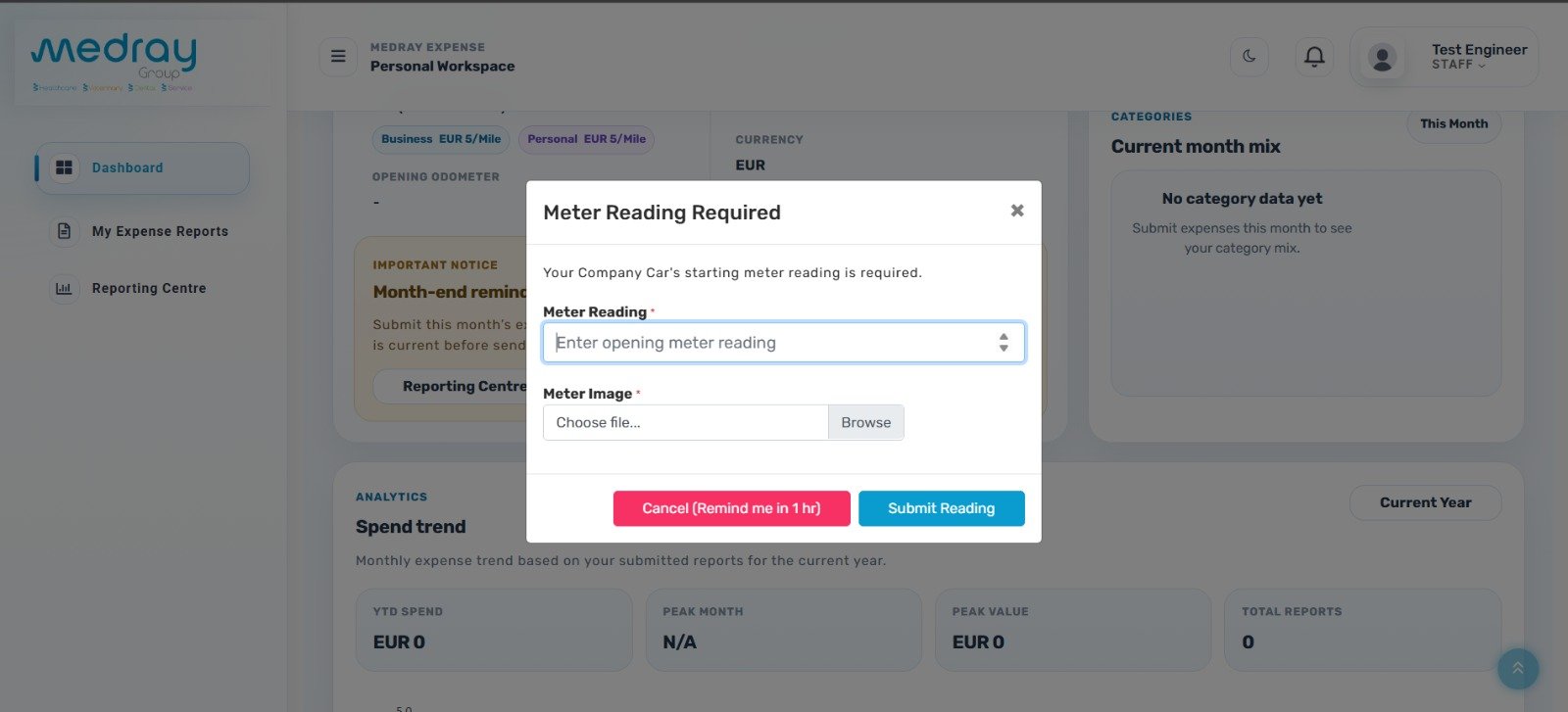
Important Mileage And Odometer Requirement

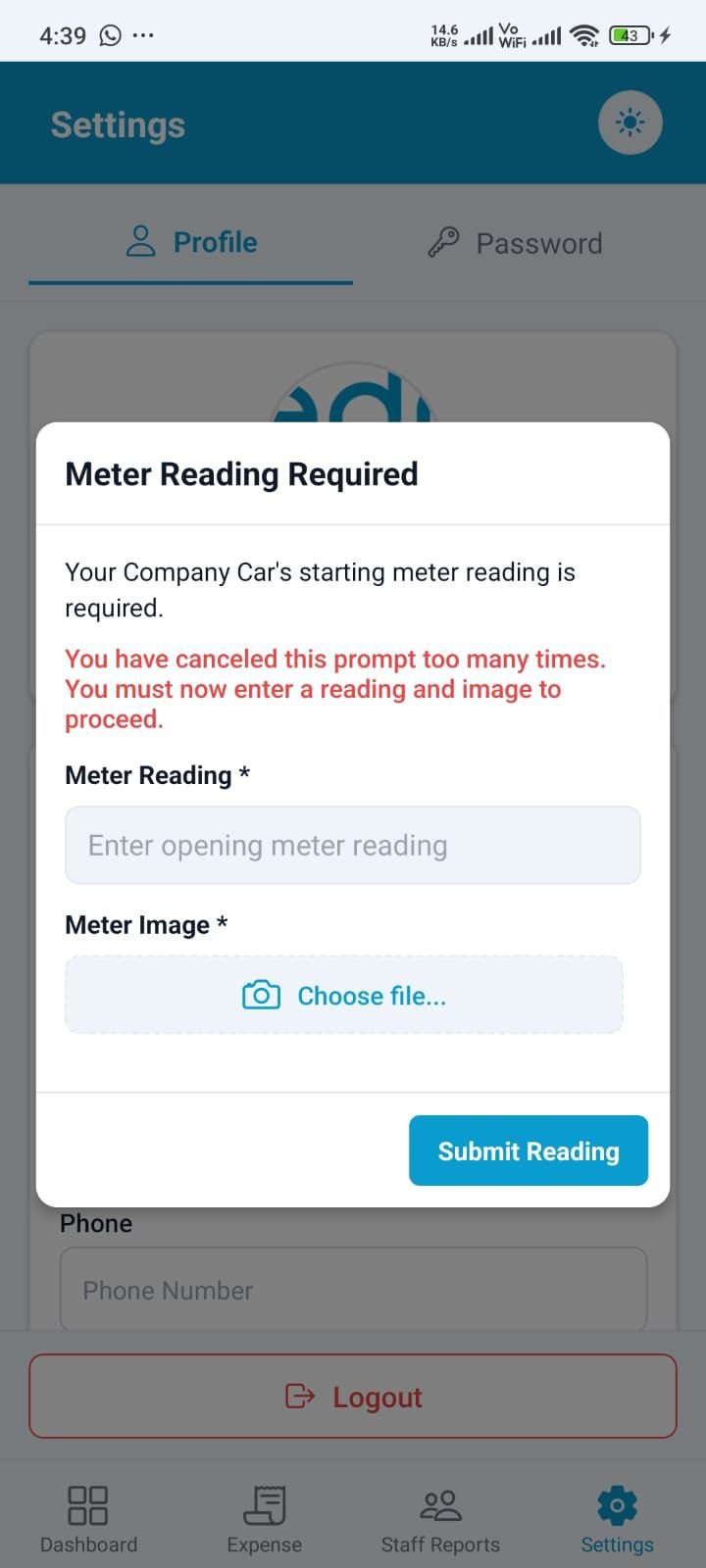
Staff who have a company-issued vehicle, or who use a vehicle for company travel, will need to provide an opening odometer reading when their account is first set up. After that, each car travel trip should include the relevant closing odometer reading so mileage is recorded accurately and in line with company requirements.

Main Travel & Expense Policy

Use the core Medray policy as the main rulebook for allowable claims, required information, and reimbursement expectations.

Open PDF

Ireland Appendix

Use the Ireland appendix when local policy details, categories, or reimbursement rules differ from the main policy.

Open PDF

UK Appendix

Use the UK appendix when you are claiming within the UK workflow and need local policy clarification.

Open PDF

Country-Specific Policy Reminder

Always use the main Medray policy first, then check whether a country appendix also applies to your claim.
If you are unsure which local policy reference applies, speak to your line manager first and then HR if needed.